Bring Your Whole Team IntoYour SEO Content Workflow
Invite teammates, assign roles, and collaborate on your content calendars. Everyone works in the same tool with the right level of access.
3-day free trial
Team members
Admin
Full access
Editor
Edit & approve
Viewer
View only
+ invite unlimited team members
Unlimited
Team members
3 roles
Admin, Editor, Viewer
Invitation workflow
Per-site
Access control
SEO content shouldn't be a one-person job.
Without a shared workspace, teams end up sharing login credentials or working in siloed tools.
Without team collaboration
- ✗Shared login credentials with no audit trail
- ✗No way to give clients or reviewers limited access
- ✗Content strategy lives in one person’s head or inbox
With Fast SEO Fix team collaboration
- ✓Each team member has their own login with the right role
- ✓Clients or reviewers can access specific calendars without seeing everything
- ✓Everyone works in one shared workflow from planning to publishing
How to add team members
Invite and configure access in three steps
Send an email invitation
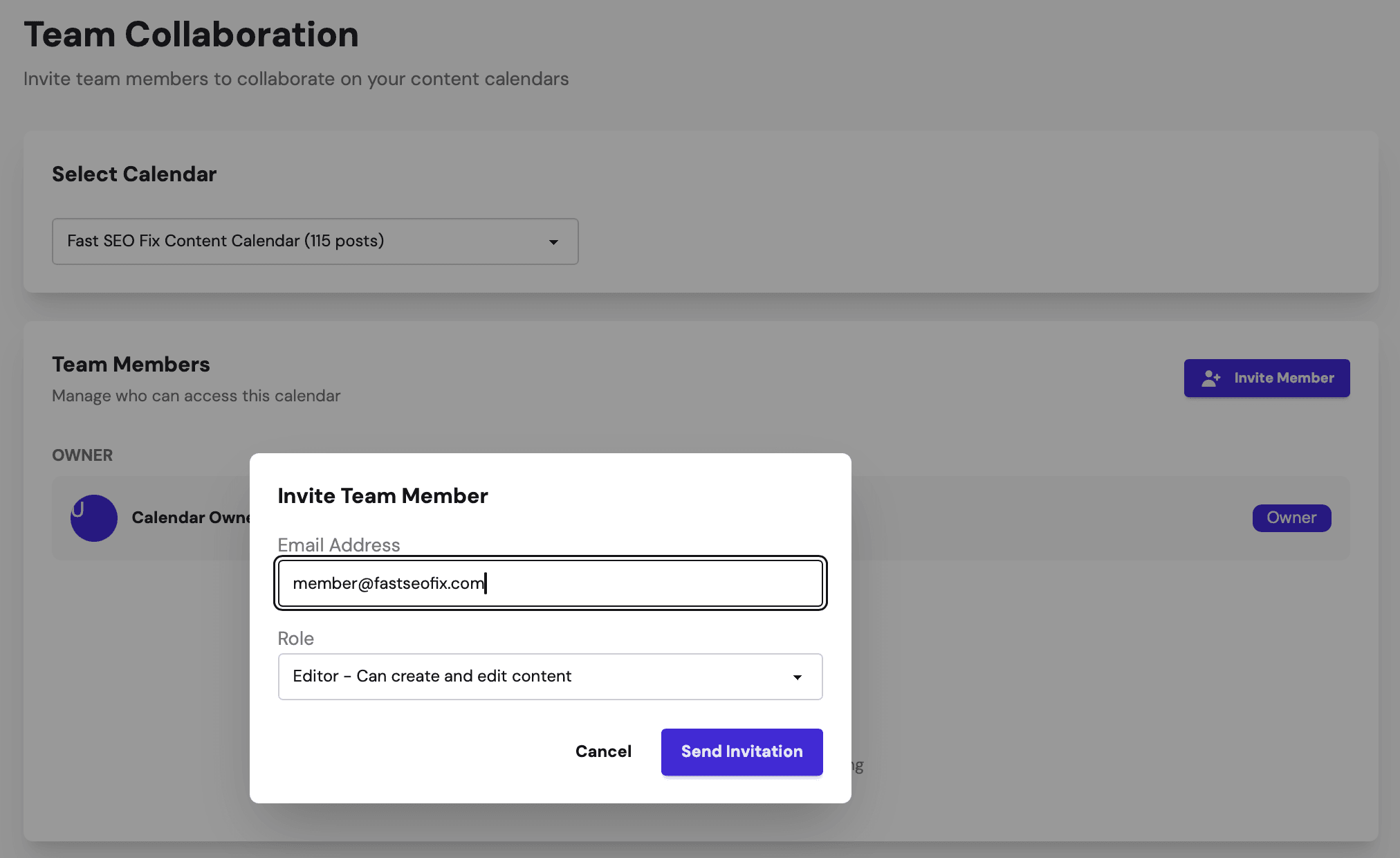
Enter your team member's email address from the Team settings page. They receive an invitation link to create their account.
Assign a role
Choose Admin, Editor, or Viewer. Admins have full control, Editors can create and edit content, and Viewers can review without making changes.
Set calendar access
Control which content calendars each team member can see. Useful for agencies with multiple clients on separate calendars.
Built for teams of every size
Whether you're a 2-person startup or an agency managing 20 clients, collaboration scales with you.
Unlimited team members
Add as many teammates, clients, or contractors as you need. There is no per-seat pricing. Everyone who needs access gets it at no extra cost.
Role-based permissions
Three distinct roles give you precise control over who can change settings, generate content, or simply review what the team is publishing.
Per-calendar access control
Limit a team member to specific calendars. Give Client A access to their calendar only, while your internal team sees everything.
For any team working on SEO content together
The moment more than one person touches your content strategy, you need proper collaboration tools
Marketing Agencies
Give each client their own calendar access while keeping your full account overview. No more shared passwords or separate logins.
In-house Content Teams
Editors, writers, and managers each get the right level of access to collaborate on the content calendar without stepping on each other.
Growing Startups
Add new team members as you scale. No seat limits means your collaboration setup grows with the company at no extra cost.
Invite Your Team Today
Add teammates, assign roles, and manage your entire SEO content workflow together in one place.
