Manage All Your WebsitesFrom One Dashboard
Create separate content calendars for every website, brand, or client. Each one gets its own keywords, publishing settings, and integrations — fully isolated.
3-day free trial
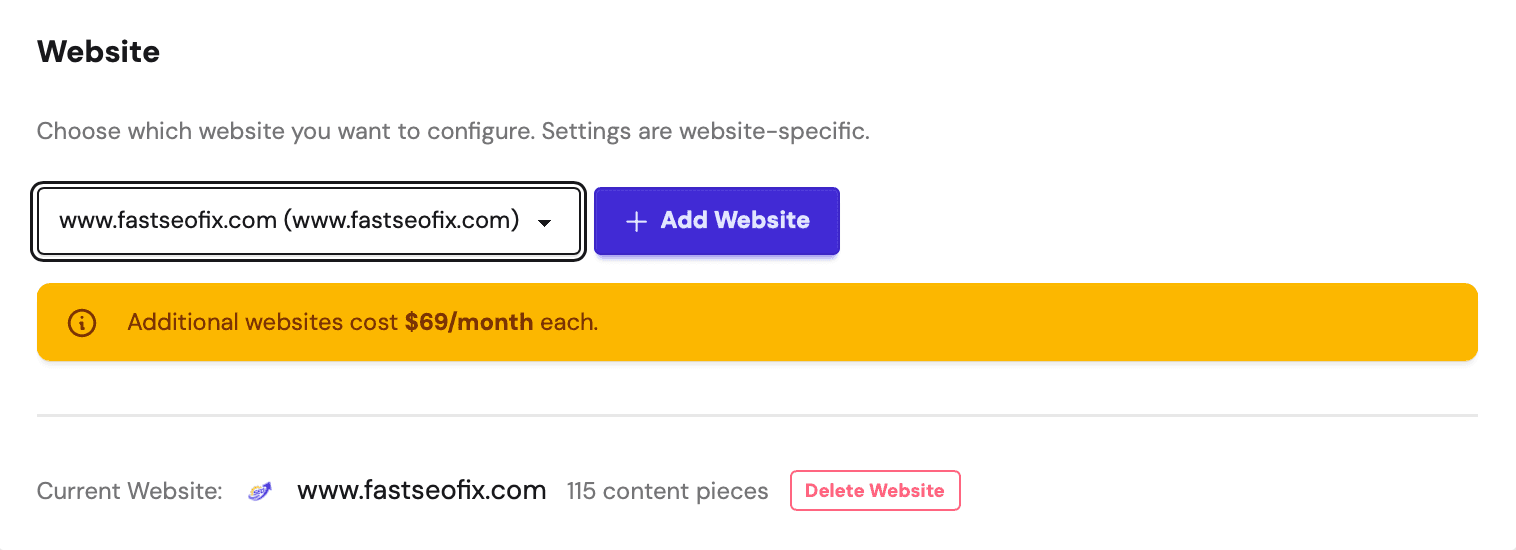
Main Company Blog
WordPress · 31 posts · English
E-commerce Store Blog
Shopify · 22 posts · Conversational
German Market Blog
WordPress · 18 posts · German
+ add as many calendars as you need
Unlimited
Calendars
Per-site
Settings & integrations
Isolated
Keyword pools
1 account
For all your sites
Stop mixing your sites into one messy calendar.
Running multiple websites in a single workflow creates constant context-switching and configuration conflicts.
Without multiple calendars
- ✗One global configuration that doesn’t fit all sites
- ✗Keywords and posts from different projects get mixed up
- ✗No way to connect different sites to different CMS platforms
With Fast SEO Fix multiple calendars
- ✓Each site gets its own calendar with fully independent settings
- ✓Keywords, tone, language, and integrations are isolated per calendar
- ✓Connect WordPress, Shopify, or Webflow separately per calendar
How to create multiple calendars
Up and running in under two minutes per site
Create a new calendar
From your dashboard, click "Create New Calendar" and give it a name: e.g. "Client: Acme Corp" or "German Market Blog".
Configure it independently
Set the website URL, content tone, language, image style, and CMS integration specifically for this calendar. No other calendar is affected.
Switch between them instantly
All your calendars live in one account. Jump between sites with a single click and manage each project in complete isolation.
What makes multiple calendars powerful
True isolation means every site runs its own SEO strategy without interference.
Independent settings per calendar
Each calendar has its own URL, content tone, target language, image style, and publishing schedule. Change one without touching the others.
Separate CMS integrations
Connect one calendar to WordPress, another to Shopify, and a third to Webflow. All from the same account, with zero cross-contamination.
Dedicated keyword pools
Each calendar manages its own keyword research and content queue. Target completely different niches without any overlap between your projects.
Built for anyone managing more than one site
Multiple calendars scale with your portfolio — whether that's 2 sites or 20
Marketing Agencies
One account for all clients. Each client gets their own calendar, their own keywords, and their own publishing destination.
Multi-Brand Companies
Keep content separate for different brands or product lines. Each brand maintains its own voice and publishing schedule.
Niche Site Builders
Scale across multiple websites without adding complexity. Each site targets its own audience with a fully independent SEO strategy.
Manage All Your Sites with Multiple Calendars
Create unlimited content calendars, each with its own settings, integrations, and content pipeline.
