The Complete Guide to WordPress Automation: Save Time and Scale Your Site in 2026
Posted by
 Stefan Winter
TL;DR
WordPress automation uses plugins and third-party tools to handle repetitive tasks like content scheduling, email workflows, and social media sharing, freeing up time and reducing errors. By implementing automation strategically, site owners can scale their operations without proportionally increasing workload, whether using native WordPress plugins like Uncanny Automator or external platforms like Zapier.
The Complete Guide to WordPress Automation: Save Time and Scale Your Site in 2026
If you manage a WordPress website, you already know how much time goes into keeping everything running smoothly. From publishing content and responding to comments to updating plugins and sending email notifications, the daily tasks can quickly pile up. WordPress automation offers a smarter way to handle all of this, freeing you to focus on what actually grows your business. In this complete guide, you will learn exactly what WordPress automation is, which tools make it possible, and how to implement it effectively whether you run a personal blog, an ecommerce store, or a corporate website.
What Is WordPress Automation?
WordPress automation refers to the process of using plugins, third-party tools, or built-in platform features to perform repetitive tasks without manual effort. Instead of logging in every day to publish a post, approve a comment, or send a follow-up email, you set up a workflow once and let the system handle it automatically.
This concept has grown significantly in recent years. As WordPress powers over 40 percent of all websites globally, the demand for smarter site management has pushed developers to create increasingly powerful automation solutions. In 2026, these tools are more accessible and capable than ever before, making automation a realistic option for site owners at every skill level.
The core idea behind WordPress automation is simple: identify tasks you perform repeatedly, then configure a system to complete those tasks based on specific triggers or schedules. Once that foundation is in place, your site works harder while you work smarter.
Why Does WordPress Automation Matter for Your Site?
Before diving into the tools and tactics, it is worth understanding why automation deserves a place in your WordPress strategy. The benefits go well beyond convenience.
First, automation dramatically reduces human error. When you manually update dozens of product prices or send individual emails to new subscribers, mistakes happen. Automated workflows follow the exact rules you define, every single time. Second, automation scales with your site. As your traffic and content volume grow, your workload does not have to grow at the same rate. Third, automation improves consistency, which matters for both user experience and SEO. Search engines reward sites that publish regularly and maintain technical health, and automation helps you stay on schedule.
For business owners especially, WordPress automation translates directly into cost savings. Tasks that once required a virtual assistant or developer can often be handled by a well-configured plugin or integration.
What Are the Most Common WordPress Automation Use Cases?
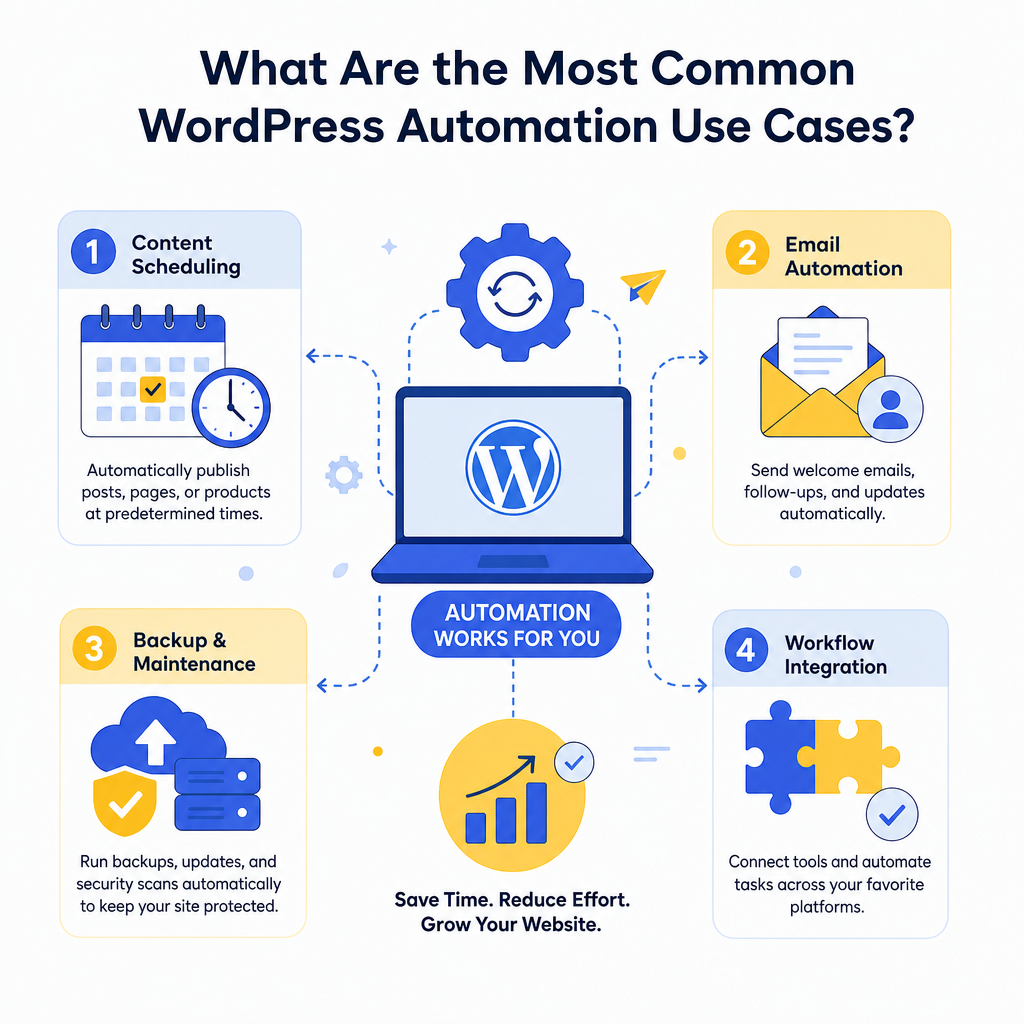
Understanding where automation delivers the most value helps you prioritize where to start. Here are the most popular use cases WordPress site owners rely on in 2026:
- Content scheduling: Automatically publish posts, pages, or product listings at predetermined times without being online.
- Email marketing workflows: Trigger welcome emails, abandoned cart reminders, or drip campaigns based on user actions.
- Social media sharing: Automatically share new content to platforms like Facebook, Instagram, LinkedIn, or X when a post goes live.
- Plugin and theme updates: Schedule or automate core, plugin, and theme updates during low-traffic windows.
- Backup creation: Run daily or weekly backups automatically and store them in cloud locations like Google Drive or Dropbox.
- Form responses and CRM syncing: Send data collected through contact forms directly to your CRM or email list without manual export.
- Comment moderation: Use AI-powered spam filters to automatically approve, hold, or delete comments based on defined rules.
- WooCommerce order management: Automate order confirmations, inventory updates, shipping notifications, and customer follow-ups.
Which Tools Power WordPress Automation Best?
The good news is that you have a wide range of tools to choose from. Some are native WordPress plugins, while others connect WordPress to external platforms through APIs or no-code integration services.
WordPress-Native Automation Plugins
Several plugins are built specifically to add automation capabilities inside your WordPress dashboard. WP Cron is a built-in WordPress feature that handles time-based tasks like publishing scheduled posts and running maintenance routines. For more advanced workflows, plugins like Uncanny Automator and AutomatorWP let you create if-this-then-that style automations between your existing plugins without writing a single line of code.
For example, you can set up a rule that says: "When a user completes a WooCommerce purchase, add them to a specific Mailchimp list and enroll them in a LearnDash course." This kind of multi-step automation used to require custom development. Today, it takes a few clicks.
Third-Party Integration Platforms
Tools like Zapier, Make (formerly Integromat), and Pabbly Connect connect WordPress to thousands of external apps. These platforms work through webhooks and API connections, allowing data to flow between WordPress and tools like Slack, Google Sheets, HubSpot, Trello, and more. For site owners who rely on a broader tech stack, these integrations are invaluable.
Comparison of Popular WordPress Automation Tools
| Tool | Best For | WordPress Plugin Required | Pricing Model | Skill Level |
|---|---|---|---|---|
| Uncanny Automator | Internal WP plugin workflows | Yes | Free and paid tiers | Beginner |
| AutomatorWP | Budget-friendly WP automation | Yes | Free and paid tiers | Beginner |
| Zapier | Connecting WordPress to external apps | Optional (webhook) | Subscription | Intermediate |
| Make (Integromat) | Complex multi-step workflows | Optional (webhook) | Subscription | Intermediate |
| WP Cron | Scheduled background tasks | Built-in | Free | Beginner |
| Pabbly Connect | Affordable Zapier alternative | Optional | One-time or subscription | Intermediate |
How Do You Set Up WordPress Automation Step by Step?
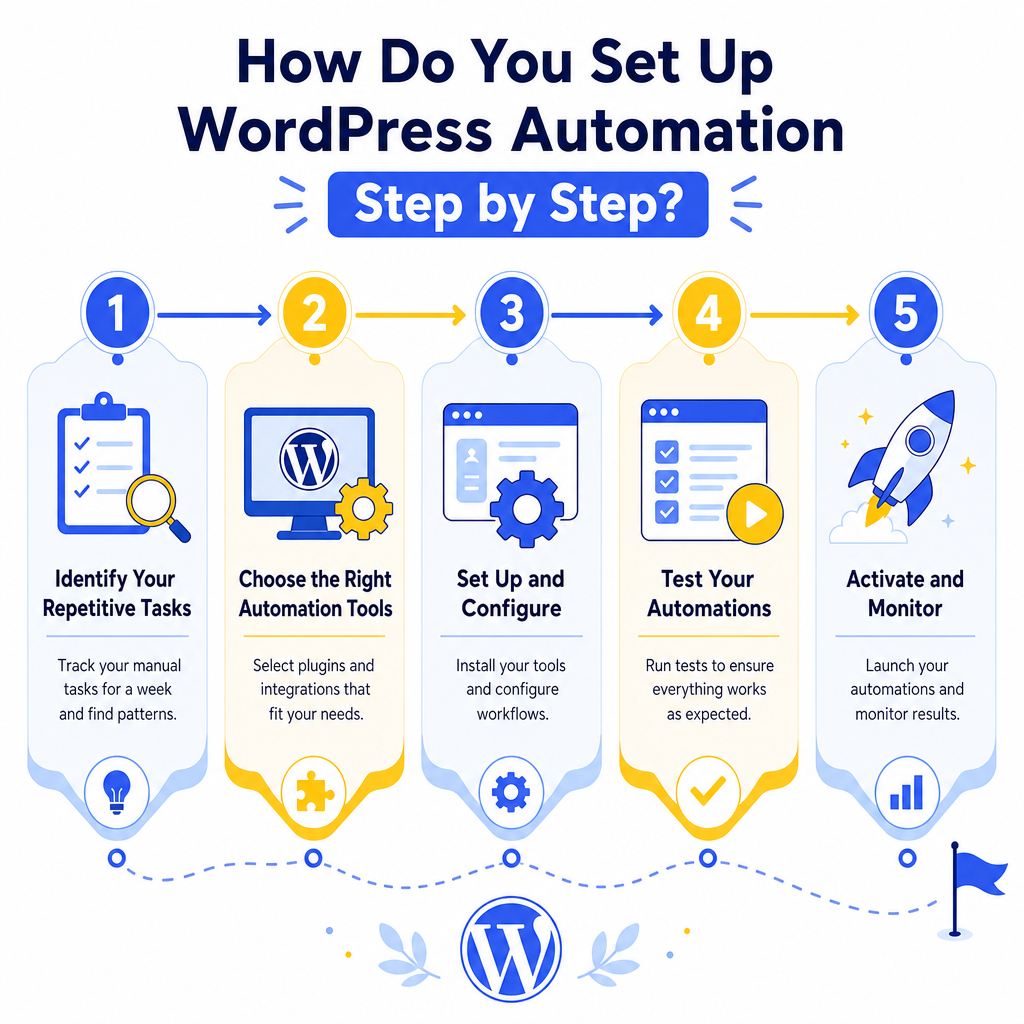
Getting started with WordPress automation does not require technical expertise. Following a clear process makes the experience much smoother.
Step 1: Identify your repetitive tasks. Spend one week noting every manual task you perform on your WordPress site. Look for patterns. Tasks you do more than once a week are strong candidates for automation. Step 2: Choose the right tool. Based on the comparison table above, match your use case to the appropriate tool. If you want to automate workflows between your existing plugins, start with Uncanny Automator. If you need to connect WordPress to an external app, explore Zapier or Make. Step 3: Define your triggers and actions. Every automation follows a simple logic: a trigger (something that happens) causes an action (something that gets done). For example, "a new user registers" is a trigger, and "send a welcome email" is the action. Step 4: Test before you launch. Always test your automations with sample data before activating them for real users. A misconfigured workflow can send duplicate emails, create incorrect records, or disrupt your WooCommerce orders. Step 5: Monitor and refine. Check your automation logs regularly, especially in the first few weeks. Most tools provide logs that show whether each automation ran successfully or encountered an error.What Are the Best Practices for WordPress Automation in 2026?
As powerful as automation is, using it carelessly can create problems. These best practices help you get the most out of WordPress automation while avoiding common pitfalls.
- Start small. Automate one or two workflows before building an entire system. This makes troubleshooting much easier.
- Document your automations. Keep a simple record of every automation you create, including what triggers it and what it does. This is especially helpful if you work with a team.
- Avoid automation loops. Some tools can accidentally trigger each other in a loop. For example, an automation that updates a post could trigger another automation that updates it again. Always check for circular logic.
- Respect user privacy. When automating data collection or email workflows, ensure your setup complies with GDPR, CCPA, and any other applicable data privacy regulations.
- Use conditional logic. The best automations are not one-size-fits-all. Use conditional rules to ensure actions only fire when specific criteria are met, reducing unnecessary noise.
How Does WordPress Automation Support SEO?
This is a question many site owners overlook, but the connection between automation and SEO is stronger than it might appear. Consistent content publishing, one of the biggest ranking factors, becomes much easier when you schedule posts in advance. Automated internal linking tools can suggest or add relevant links as you publish new content. Broken link checkers can run on a schedule and alert you to issues before they affect your rankings.
Additionally, automating your site's technical maintenance, including updating plugins, clearing caches, and generating XML sitemaps, ensures your site stays fast and crawlable. In 2026, Core Web Vitals remain a significant ranking signal, and a well-maintained, automatically optimized site is better positioned to perform well in search results.
Conclusion
WordPress automation is no longer a luxury reserved for large development teams or enterprise budgets. In 2026, the tools available make it practical for any site owner to automate meaningful parts of their workflow, from content publishing and email marketing to WooCommerce management and SEO maintenance. The result is a site that runs more consistently, scales more efficiently, and demands less of your time.
The best place to start is with the tasks that consume the most of your week. Pick one automation, set it up using the step-by-step process outlined in this guide, and watch how much time it returns to you. Once you experience that first win, building out a broader automation strategy becomes a natural next step. Take action today, and let your WordPress site start working for you around the clock.
Frequently Asked Questions
WordPress automation is the process of using plugins, third-party tools, or built-in features to perform repetitive tasks automatically based on triggers or schedules, eliminating the need for manual intervention.
Key benefits include reduced human error, improved consistency, the ability to scale without proportional workload increase, and direct cost savings by eliminating the need for manual task handling or additional staff.
Popular use cases include content scheduling, email marketing workflows, social media sharing, plugin updates, automated backups, form-to-CRM syncing, comment moderation, and WooCommerce order management.
You can use native WordPress plugins like Uncanny Automator and AutomatorWP, or third-party integration platforms like Zapier, Make, and Pabbly Connect to connect WordPress with external applications.
No, most modern WordPress automation tools are designed for beginners and use visual, no-code interfaces like if-this-then-that workflows, making automation accessible regardless of technical skill level.

Stefan Winter
Founder & SEO Expert
Founder of Fast SEO Fix and SEO automation expert. Stefan built Fast SEO Fix to solve the tedious problem of manual SEO work. He specializes in SEO optimized content generation, keyword research, and automated SEO strategies.
